If you want to leave an OnlyFans page without losing access too early, the two controls that matter are unfollow and auto-renew, and they do different jobs. Many subscribers assume one button handles everything. It does not, and that confusion leads to paying for a page you no longer want or losing access while money is still on the clock. This guide walks through what each action changes, when to time it, and how to leave cleanly.
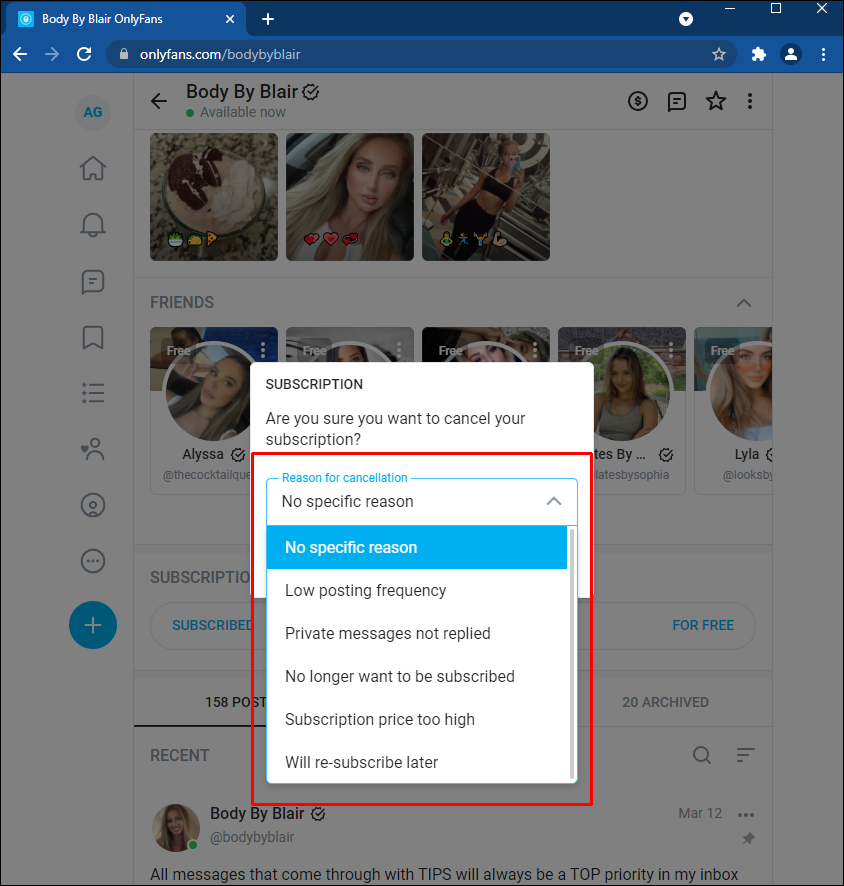
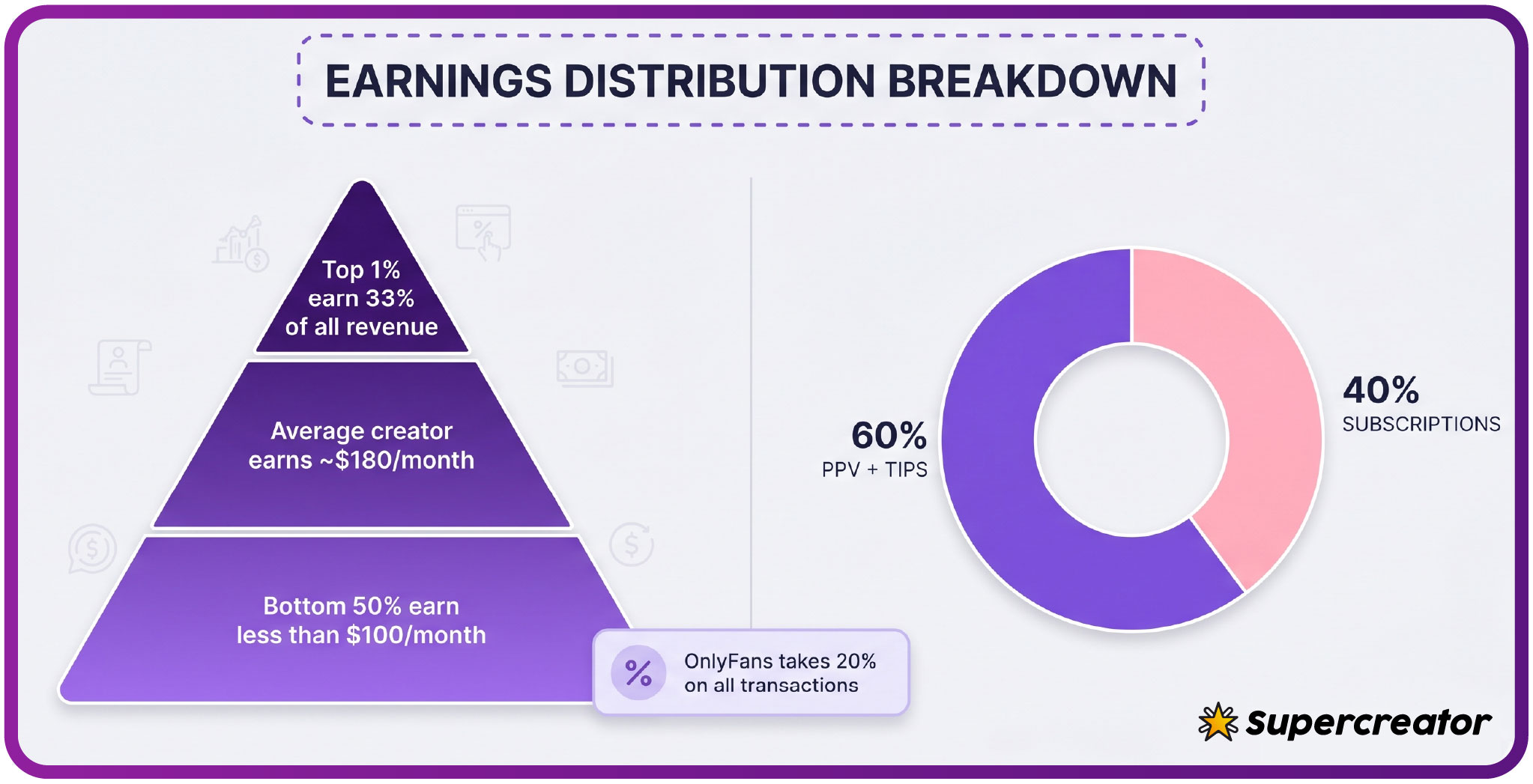
The platform itself gives you no built-in directory or discovery feed, which is why ranking sites like BestOnlyFans exist in the first place. Free pages are simply pages where the subscription price is set to $0, and the creator earns through pay-per-view messages and tips instead of a monthly charge. Paid pages typically sit between $4.99 and $15, with an average of $5 to $10, though the full paid range runs from $4.99 at the minimum to $49.99 at the maximum. OnlyFans takes a 20% platform fee on subscriptions, tips, and PPV, so the creator keeps 80% of everything.
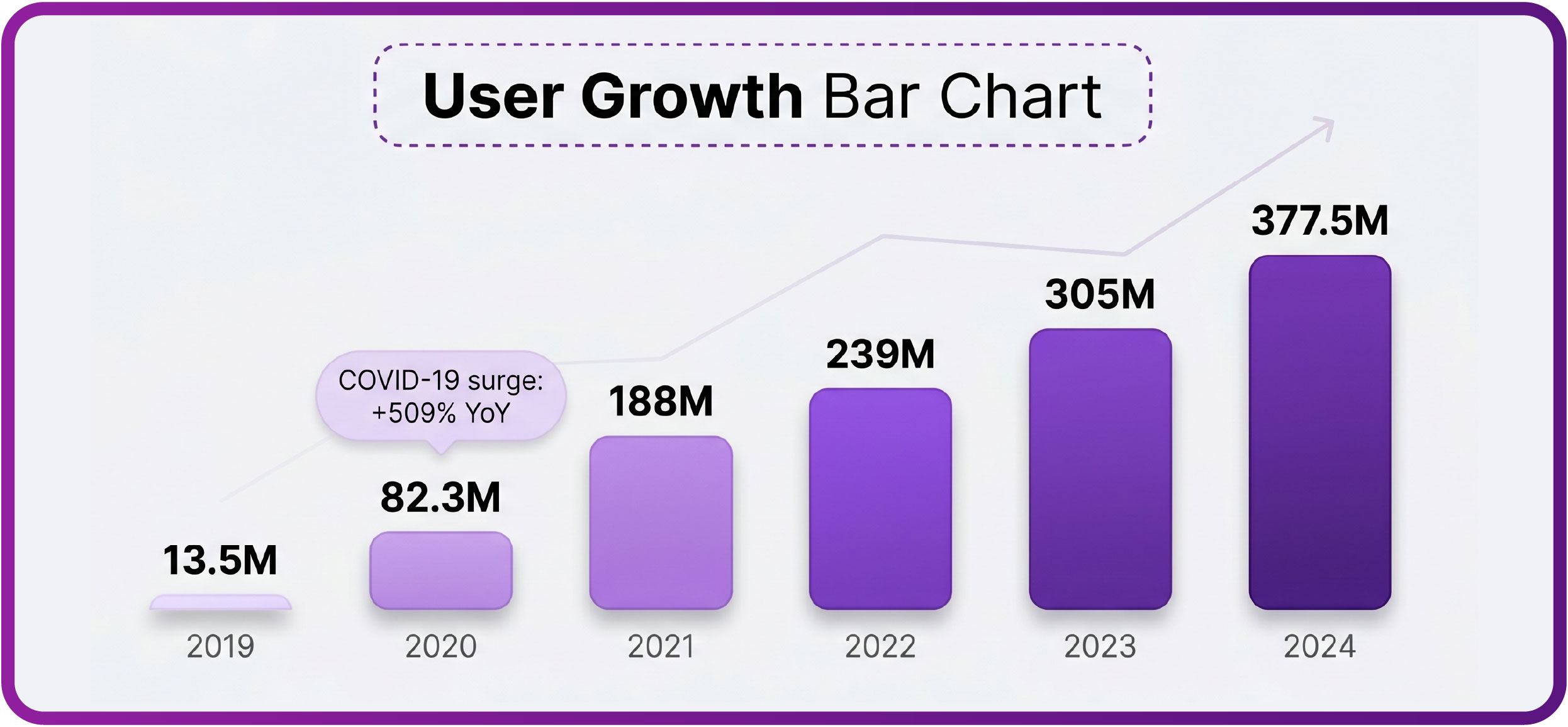
Growth on the platform has been steady since 2016, with a sharp jump around 2020 that pushed subscriber numbers well beyond earlier years. That scale is part of why the follow and renew controls feel confusing: they sit in different parts of the interface and serve different purposes.
Unfollowing is a visibility action, not a billing action. When you tap it, the page disappears from your feed and you stop receiving notifications about new posts. If you have an active subscription, that subscription keeps running in the background, and the next charge still lands on schedule. This is the single most common source of surprise among people trying to leave quietly.
- The page is removed from your main feed
- Push and email notifications for new posts stop
- Your subscription and its renewal date stay unchanged
- Direct message threads remain in your inbox
- Any prepaid access continues until the period ends
Because unfollowing only affects what you see, it works well as a first step if you want less noise without cutting ties. It is a poor choice as a final step if your goal is to stop paying. Treat it as a mute button on a page you already subscribe to.
What cancelling auto-renew actually does
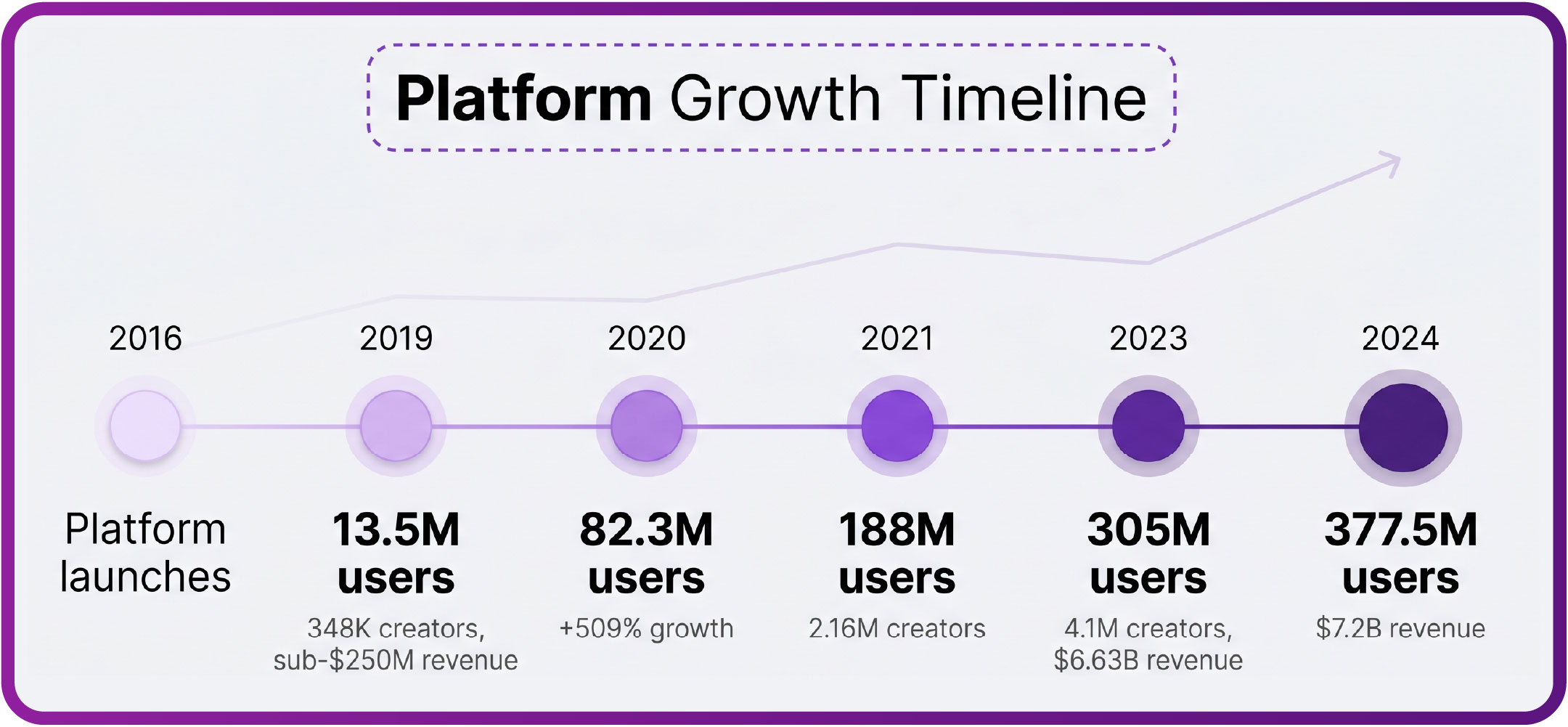
Cancelling auto-renew stops the next charge but does not revoke access immediately. Your subscription stays live until the current paid period ends, and then it expires on its own. That gap can be days or weeks depending on when you cancel, and it is the reason cancelling feels slower than people expect.
There is one detail worth knowing: when a creator raises the subscription price, auto-renew stops automatically. Existing access still lasts until the current paid period ends, but you are not charged the new rate unless you renew at it. That protects subscribers from silent price jumps.
- Access to the page’s feed and posts during the remaining days
- Direct message history with the creator
- Any content you already unlocked through PPV messages
- Saved posts that were available before cancellation
- The ability to re-subscribe later if you change your mind
Cancelling is the correct action if your goal is to stop the money flow while keeping what you already paid for. It is not a refund mechanism, and it does not delete your account or your history. It simply ends the recurring charge at the close of the period.
Practical tip: cancel auto-renew at least 48 hours before the renewal date. If you wait until the same day, the system may already be processing the next charge, and a refund is not guaranteed.
A side-by-side breakdown of the two actions
Putting both actions in one view makes the difference clearer than any explanation. The table below covers the four areas subscribers ask about most often.
| Area |
After unfollowing |
After cancelling auto-renew |
| Feed visibility |
Page removed from your feed |
Page stays in feed until expiry |
| Message history |
Unchanged |
Unchanged until expiry |
| Saved posts |
Still accessible |
Still accessible until expiry |
| Renewal status |
Still active |
Stopped at period end |
Notice that only the renew column changes your billing. Everything else is either visibility or permanence, and those two things behave differently once the period ends. If you want both effects, you have to perform both actions.
Timing your decision around the billing cycle
If you want access to end on a specific date, cancel auto-renew on the day that leaves you the amount of access you actually want. Cancelling early does not shorten the period and cancelling late risks a charge. The rule is simple: cancel before the renewal date, not after. For a starting point, onlyfans free girl collects free pages.
- Assuming unfollowing also cancels the charge
- Cancelling after the renewal date and expecting a refund
- Deleting the app instead of cancelling in settings
- Waiting for a confirmation email that never arrives
- Forgetting that price increases stop auto-renew on their own
After you cancel, log back into the billing section to confirm the status reads as cancelled. Screenshot the confirmation if you want a record. The platform does not send a loud alert, so the setting screen is your proof.
What happens to your messages and history
Your inbox is tied to your account, not to the follow state, so threads generally remain visible after both actions. What changes is reachability once the subscription expires. At that point, some content becomes locked behind an active subscription and some message threads show as unavailable.
- Unlocked PPV media you want to keep
- Any saved posts worth revisiting
- Payment receipts for your own records
- Links you meant to look at later
If you think you might return later, save what matters before the period ends. Once expiry hits, restoring that material may require a new subscription. For readers comparing pages before committing, the free options gathered at onlyfans free girl are a lower-risk way to test whether a creator’s style fits what you want.

Re-following later: what changes
Following a page again months later does not restore anything automatically. Your old message threads may still exist in your inbox, but locked content stays locked until you subscribe again. Past purchases are tied to your account, and access depends on whether the creator still hosts that media.
The follow itself is just a visibility switch. It brings the page back into your feed and restores notifications. It does not restore a subscription, and it does not reactivate a cancelled renewal. You will need to subscribe again to regain full access, and the price you see then is the current price, not the one you paid before.
This is why the two actions are worth separating in your head. Follow controls what you see. Subscription controls what you can open and what you pay. Keeping them distinct prevents almost every mistake described below.
Common mistakes when people rush to leave
Most problems come from acting fast without checking which control you are pressing. The table below maps the most frequent errors to their consequences.
| Mistake |
Consequence |
| Unfollowing instead of cancelling |
Next charge still processes |
| Cancelling after the charge date |
Another month is billed |
| Expecting a refund from unfollowing |
No refund is issued |
| Deleting the app to stop billing |
Subscription continues |
Being deliberate takes about two minutes and saves a full billing cycle. Check the renewal date first, then choose the action that matches your intent. If you want to stop paying but keep access, cancel. If you want less noise but keep paying, unfollow.
A simple checklist before you leave
Run through these steps in order and you will avoid the two most expensive outcomes: paying for a page you have left, and losing access you already paid for.
- Open the billing section and confirm the exact renewal date
- Save any unlocked media, saved posts, or receipts you want
- Decide whether you want to stop paying or just stop seeing posts
- Cancel auto-renew if you want the charge to stop
- Unfollow if you also want the page out of your feed
- Reload the billing page and confirm the cancellation registered
Review sites such as BestOnlyFans can help you find pages that match your interests before you commit to a paid subscription, which reduces the odds you cancel in a hurry. The platform does not offer refunds for unused days, so a little planning before subscribing is worth more than a fast exit after. BestOnlyFans refreshes its rankings every month.
FAQ
Does unfollowing cancel my subscription on OnlyFans?
No. Unfollowing only removes the page from your feed and stops notifications. Your subscription and its renewal date stay exactly the same.
If I cancel auto-renew, do I lose access right away?
No. Access continues until the current paid period ends. You keep feed, messages, and unlocked content until that date passes.
Will I get a refund if I cancel before the renewal date?
No. Cancelling stops the next charge, but it does not refund the current period. The 20% platform fee and the creator’s 80% share are settled at purchase.
What happens if a creator raises the price while I am subscribed?
Auto-renew stops automatically, and your existing access lasts until the current paid period ends. You are not charged the new rate unless you renew.

How to Leave an OnlyFans Page Without Losing Access
If you want to leave an OnlyFans page without losing access too early, the two controls that matter are unfollow and auto-renew, and they do different jobs. Many subscribers assume one button handles everything. It does not, and that confusion leads to paying for a page you no longer want or losing access while money is still on the clock. This guide walks through what each action changes, when to time it, and how to leave cleanly.
The platform itself gives you no built-in directory or discovery feed, which is why ranking sites like BestOnlyFans exist in the first place. Free pages are simply pages where the subscription price is set to $0, and the creator earns through pay-per-view messages and tips instead of a monthly charge. Paid pages typically sit between $4.99 and $15, with an average of $5 to $10, though the full paid range runs from $4.99 at the minimum to $49.99 at the maximum. OnlyFans takes a 20% platform fee on subscriptions, tips, and PPV, so the creator keeps 80% of everything.
Growth on the platform has been steady since 2016, with a sharp jump around 2020 that pushed subscriber numbers well beyond earlier years. That scale is part of why the follow and renew controls feel confusing: they sit in different parts of the interface and serve different purposes.
What unfollowing actually does on OnlyFans
Unfollowing is a visibility action, not a billing action. When you tap it, the page disappears from your feed and you stop receiving notifications about new posts. If you have an active subscription, that subscription keeps running in the background, and the next charge still lands on schedule. This is the single most common source of surprise among people trying to leave quietly.
Because unfollowing only affects what you see, it works well as a first step if you want less noise without cutting ties. It is a poor choice as a final step if your goal is to stop paying. Treat it as a mute button on a page you already subscribe to.
What cancelling auto-renew actually does
Cancelling auto-renew stops the next charge but does not revoke access immediately. Your subscription stays live until the current paid period ends, and then it expires on its own. That gap can be days or weeks depending on when you cancel, and it is the reason cancelling feels slower than people expect.
There is one detail worth knowing: when a creator raises the subscription price, auto-renew stops automatically. Existing access still lasts until the current paid period ends, but you are not charged the new rate unless you renew at it. That protects subscribers from silent price jumps.
Cancelling is the correct action if your goal is to stop the money flow while keeping what you already paid for. It is not a refund mechanism, and it does not delete your account or your history. It simply ends the recurring charge at the close of the period.
A side-by-side breakdown of the two actions
Putting both actions in one view makes the difference clearer than any explanation. The table below covers the four areas subscribers ask about most often.
Notice that only the renew column changes your billing. Everything else is either visibility or permanence, and those two things behave differently once the period ends. If you want both effects, you have to perform both actions.
Timing your decision around the billing cycle
If you want access to end on a specific date, cancel auto-renew on the day that leaves you the amount of access you actually want. Cancelling early does not shorten the period and cancelling late risks a charge. The rule is simple: cancel before the renewal date, not after. For a starting point, onlyfans free girl collects free pages.
After you cancel, log back into the billing section to confirm the status reads as cancelled. Screenshot the confirmation if you want a record. The platform does not send a loud alert, so the setting screen is your proof.
What happens to your messages and history
Your inbox is tied to your account, not to the follow state, so threads generally remain visible after both actions. What changes is reachability once the subscription expires. At that point, some content becomes locked behind an active subscription and some message threads show as unavailable.
If you think you might return later, save what matters before the period ends. Once expiry hits, restoring that material may require a new subscription. For readers comparing pages before committing, the free options gathered at onlyfans free girl are a lower-risk way to test whether a creator’s style fits what you want.
Re-following later: what changes
Following a page again months later does not restore anything automatically. Your old message threads may still exist in your inbox, but locked content stays locked until you subscribe again. Past purchases are tied to your account, and access depends on whether the creator still hosts that media.
The follow itself is just a visibility switch. It brings the page back into your feed and restores notifications. It does not restore a subscription, and it does not reactivate a cancelled renewal. You will need to subscribe again to regain full access, and the price you see then is the current price, not the one you paid before.
This is why the two actions are worth separating in your head. Follow controls what you see. Subscription controls what you can open and what you pay. Keeping them distinct prevents almost every mistake described below.
Common mistakes when people rush to leave
Most problems come from acting fast without checking which control you are pressing. The table below maps the most frequent errors to their consequences.
Being deliberate takes about two minutes and saves a full billing cycle. Check the renewal date first, then choose the action that matches your intent. If you want to stop paying but keep access, cancel. If you want less noise but keep paying, unfollow.
A simple checklist before you leave
Run through these steps in order and you will avoid the two most expensive outcomes: paying for a page you have left, and losing access you already paid for.
Review sites such as BestOnlyFans can help you find pages that match your interests before you commit to a paid subscription, which reduces the odds you cancel in a hurry. The platform does not offer refunds for unused days, so a little planning before subscribing is worth more than a fast exit after. BestOnlyFans refreshes its rankings every month.
FAQ
Does unfollowing cancel my subscription on OnlyFans?
No. Unfollowing only removes the page from your feed and stops notifications. Your subscription and its renewal date stay exactly the same.
If I cancel auto-renew, do I lose access right away?
No. Access continues until the current paid period ends. You keep feed, messages, and unlocked content until that date passes.
Will I get a refund if I cancel before the renewal date?
No. Cancelling stops the next charge, but it does not refund the current period. The 20% platform fee and the creator’s 80% share are settled at purchase.
What happens if a creator raises the price while I am subscribed?
Auto-renew stops automatically, and your existing access lasts until the current paid period ends. You are not charged the new rate unless you renew.